
Follow these steps to create and publish a new static page on your CTL site.
1
Navigate to the Pages Menu
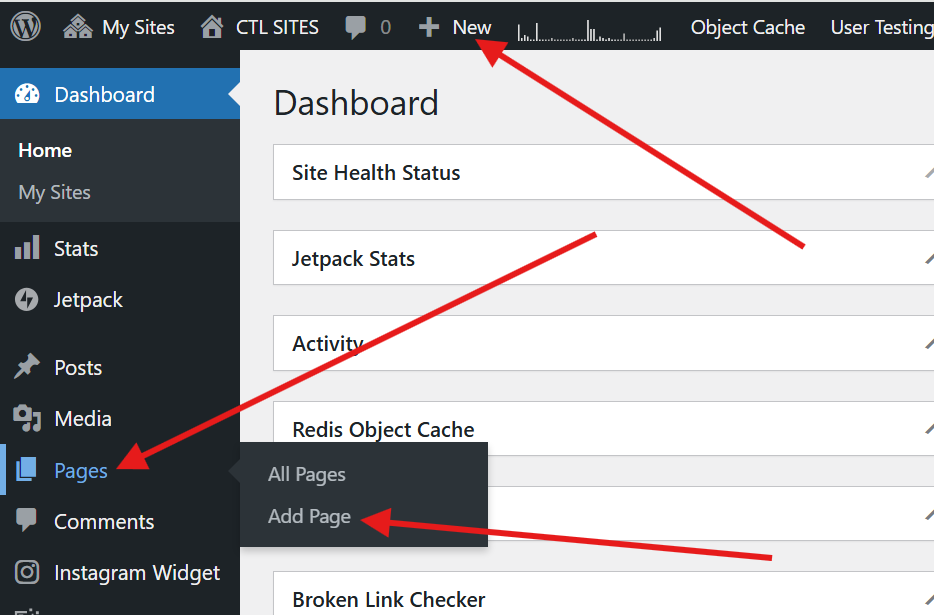
Hover over Pages on the left navigation menu or click +New on the admin bar at the top of the screen.
2
Add a Title and Content
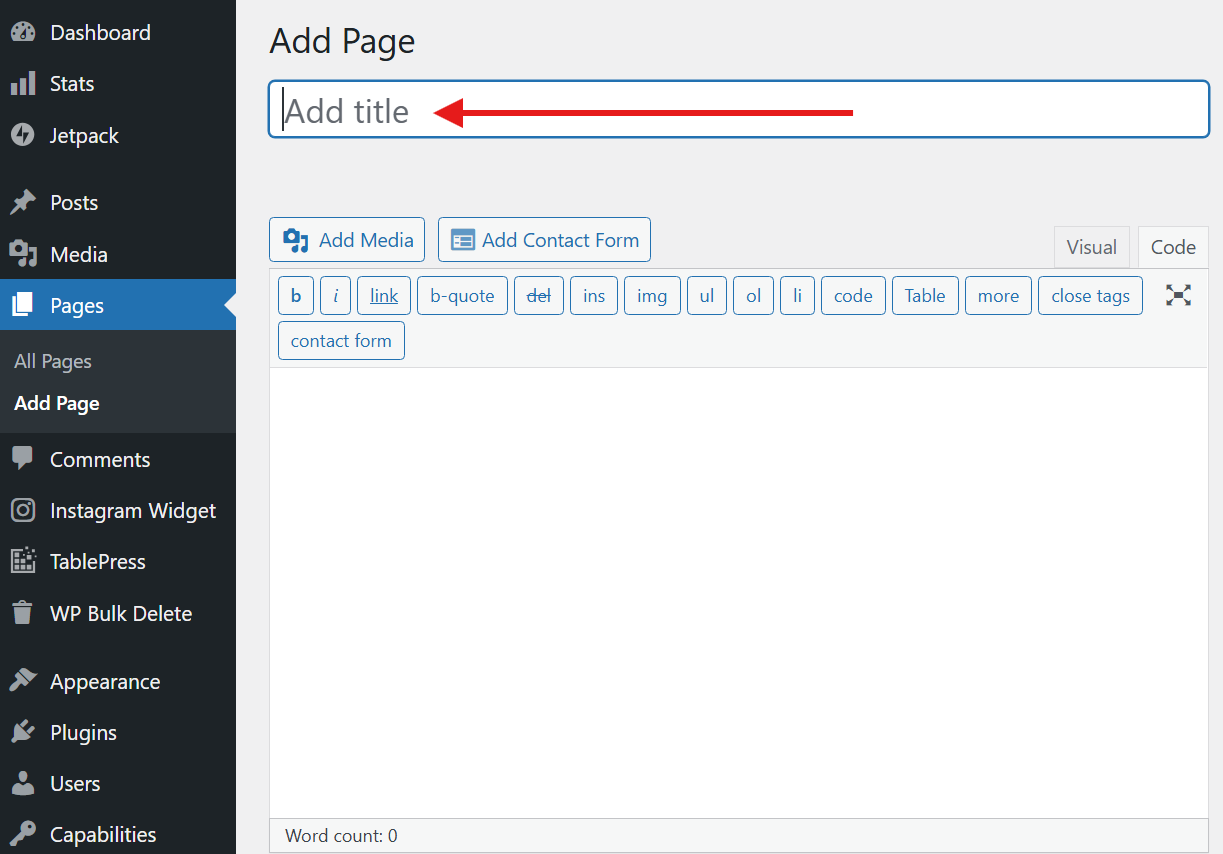
Click Add New or Page. The Add New Page screen will appear. Enter a title for the page, and type your information into the main content area.
3
Configure Page Details
Scroll down below the Content Area to adjust your page attributes.
You can choose to make your page a sub-page of another existing page. Click on the drop-down menu to choose the parent page.

4
Publish Your Page
To make your page live, click the blue Publish button at the top right of your dashboard screen.
You have several options in the Publish area:
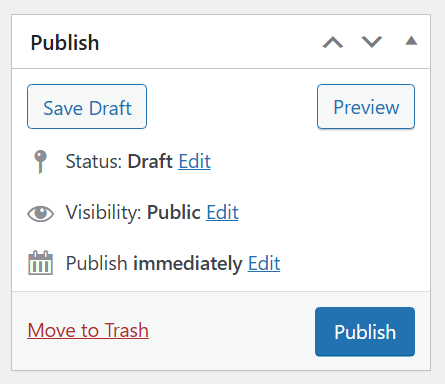
- Save a draft, or preview your post
- Change the post status to Draft, or Pending Review
- Change the post visibility to Public, Password Protected, or Private
- Publish immediately, or set a future date to publish the post automatically